How to Fix IPTV Buffering and Freezing With Krooz TV: A Complete Step-by-Step Troubleshooting Guide
Buffering, frozen frames, and stream disconnections can originate at several points in an IPTV delivery path: the source, internet route, ISP connection, home router, Wi-Fi or Ethernet link, player, or device decoder. Because different faults can produce similar symptoms, this guide uses controlled comparisons to narrow the possible cause and identify a practical next step.
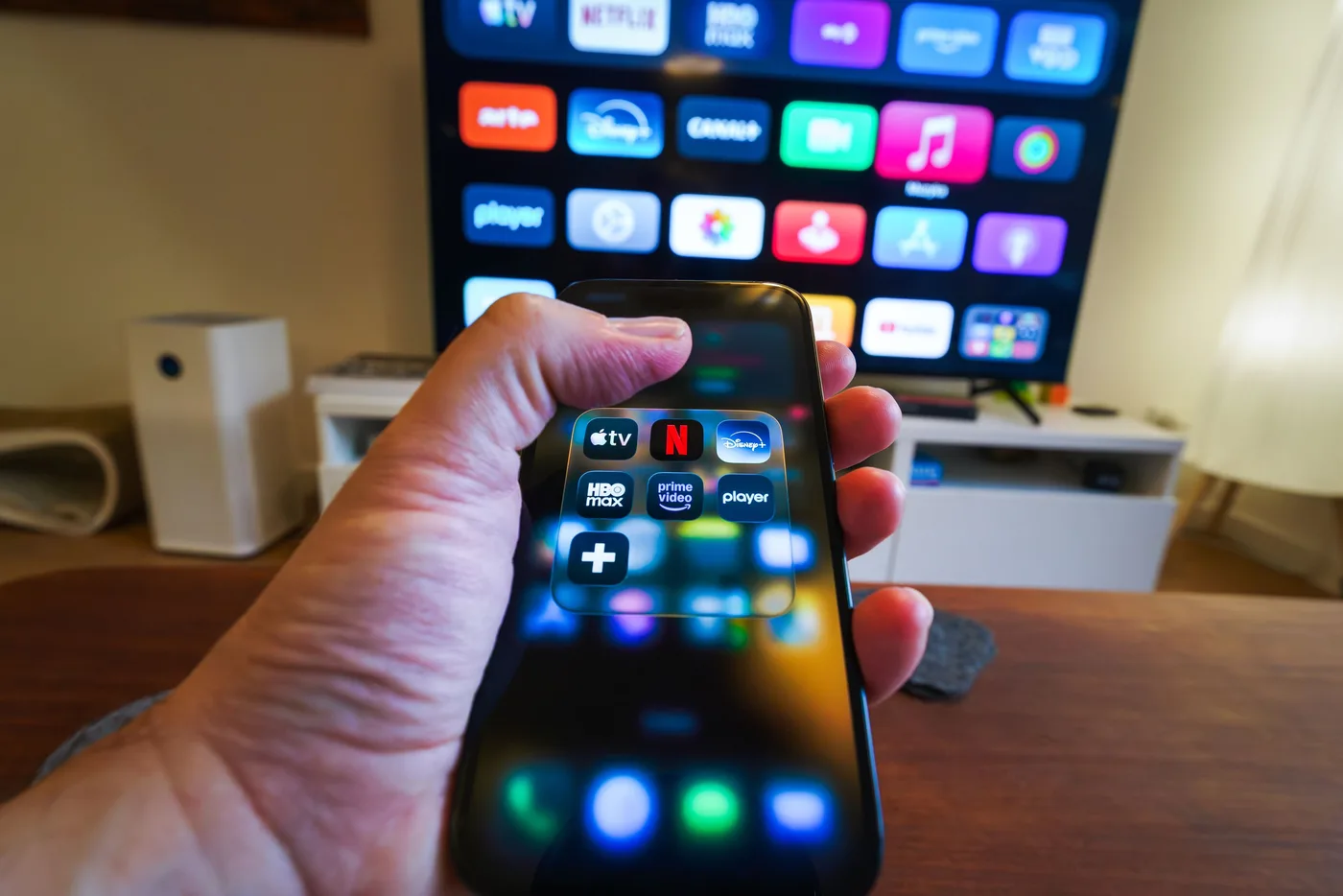
Krooz TV understanding Why IPTV Buffers: The 5 Layers of Playback Quality
To eliminate buffering effectively, you must first understand how Internet Protocol Television transfers live video data to your screen. Unlike traditional cable television, which broadcasts pre-allocated radio frequency signals across coaxial cables regardless of whether your TV is on, IPTV sends video as digital data packets across IP networks only when requested. For live channels, these data packets must arrive in strict real-time sequential order with virtually zero delay.
A failure or congestion point anywhere across five distinct layers will manifest as video freezing, audio desynchronization, audio looping, or repetitive buffering circles:
- Layer 1: Service Provider Server & Load Capacity — The infrastructure hosting the channel streams must possess adequate server bandwidth and processing headroom to handle concurrent viewer connections during peak events.
- Layer 2: Backbone Internet Routing & ISP Transit — Data packets travel across multiple tier-1 network transit providers and intermediate exchange servers before reaching your Internet Service Provider (ISP).
- Layer 3: ISP Bandwidth & Traffic Management — Your local broadband provider controls total incoming bandwidth and may actively inspect or throttle continuous real-time video streaming protocols.
- Layer 4: Home Local Area Network (LAN) — Your home wireless router, Wi-Fi channel frequency, network congestion from other devices, and Ethernet cabling transfer packets from your modem to your streaming hardware.
- Layer 5: Device Media Decoder & Application RAM — Your streaming box, smart TV, or mobile device must process incoming TS or HLS data streams, store video in a buffer cache, and decode video frames via hardware acceleration.
Because symptoms look identical regardless of which layer is failing, jumping to conclusions—such as immediately calling your ISP or buying a new streaming stick—often wastes money without solving the root cause. Following a structured isolation process ensures you fix the actual problem.
Step 1: Krooz TV Isolate the Root Cause with Quick Diagnostic Tests
Before modifying router settings or changing player configurations, run three quick isolation tests to pinpoint whether the buffering is caused by your local device, your home internet network, or the streaming provider server.
Test A: Krooz TV The Cellular Mobile Data Bypass
Disconnect your mobile phone or tablet from your home Wi-Fi network and switch to cellular data. Open the same authorized IPTV service and compare the exact channel. If playback improves, the result suggests that the home network, internet route, or television setup may be involved; it does not by itself prove ISP throttling or rule out a provider-side issue.
If the stream buffers on both connections across multiple channels, the source or provider path becomes a possible cause. Cellular and home connections can still share upstream routes, so repeat the comparison at another time before drawing a conclusion.
Test B: Krooz TV The Cross-Channel & On-Demand Benchmark
Switch from a major live sports channel to another live channel or an on-demand title. On-demand video can often build a larger buffer, whereas live television cannot pre-buffer data that has not yet occurred. If on-demand playback is stable while several live channels freeze, sustained throughput, player behavior, or the live delivery path may be involved; the comparison does not identify one cause by itself.
Test C: Krooz TV The Secondary Device Comparison
Attempt to stream the identical channel on a secondary device connected to the same network. If it plays smoothly on a laptop but stutters on an older Smart TV, the television, app, decoder, or its Wi-Fi reception becomes a stronger possible cause, as detailed in our guide to devices compatible with IPTV streaming.
Step 2: Krooz TV Fix Local Home Network & Wi-Fi Bottlenecks
Unstable local Wi-Fi is a common possible cause of IPTV buffering even when a broadband plan has enough advertised speed. Live streams are sensitive to delay variation and packet loss, and brief wireless drops can exhaust the player's buffer.
Krooz TV replace 2.4 GHz Wi-Fi with 5 GHz or 6 GHz Wi-Fi
The 2.4 GHz Wi-Fi band can encounter interference from neighboring routers and household equipment. A nearby device may perform better on 5 GHz or 6 GHz because those bands can offer wider channels, but their shorter range and wall penetration may make 2.4 GHz more stable in another room. Test sustained playback at the television rather than choosing by band name alone.
Ensure your streaming box or Smart TV is within line of sight or reasonable proximity to your router. If your TV is located behind thick plaster or concrete walls, consider installing a mesh Wi-Fi system or a powerline Ethernet adapter to maintain continuous wireless throughput.
Krooz TV switch to a Direct Wired Cat6 Ethernet Connection
Wi-Fi is exposed to radio interference and delay variation. For a fixed television or player, Ethernet can remove the wireless link from the path and make diagnosis easier, although it cannot guarantee playback or fix congestion elsewhere. Review our detailed list of IPTV equipment requirements before buying networking hardware.
Krooz TV configure Router Quality of Service (QoS) Rules
If multiple family members are downloading large files, gaming online, or streaming 4K media simultaneously, your home router may deprioritize IPTV data packets. Access your router administration panel (typically via 192.168.1.1 or 192.168.0.1 in a web browser) and enable Quality of Service (QoS). Assign maximum priority to the local IP address or MAC address of your primary IPTV streaming box to ensure live stream packets are processed before background file downloads.
Krooz TV clear Router NAT Tables and Power Cycle
Routers are specialized computers running embedded operating systems. Over weeks of continuous operation, router memory accumulates stale Network Address Translation (NAT) table entries, DNS lookup caches, and temporary packet buffers. Unplug your router and modem power cables, wait 60 seconds, and plug them back in. A full power cycle flushes temporary memory and forces your ISP to assign a fresh WAN connection IP.
Step 3: Krooz TV Detect and Bypass ISP Bandwidth Throttling
Many subscribers are surprised to experience buffering despite subscribing to high-speed fiber internet plans rated at 200 Mbps, 500 Mbps, or 1 Gbps. Understanding the difference between raw speed test results and continuous video throughput is critical.
Why Krooz TV Speed Tests Do Not Reflect IPTV Stream Stability
When you execute a speed test on sites like Ookla or Fast.com, your browser opens short-burst TCP connections to optimized speed-test servers hosted directly inside your ISP network. Speed tests measure maximum burst capacity over 10 to 15 seconds. In contrast, IPTV streams require uninterrupted data flow over several consecutive hours from external media servers.
During peak viewing hours (typically between 7:00 PM and 11:00 PM), Internet Service Providers experience heavy network load. To prevent neighborhood capacity bottlenecks, many ISPs employ Deep Packet Inspection (DPI) software to identify high-bandwidth continuous video streams and automatically cap their throughput speed to 2 Mbps or 4 Mbps—far below the sustained speed needed for smooth playback as outlined in our breakdown of internet speed needed for IPTV streaming.
How to Test Whether a VPN Changes the Network Route With Krooz TV
A VPN encrypts traffic between your device and the VPN server and changes part of the network route. A controlled comparison may reveal a routing or traffic-management difference, but improvement does not prove deliberate ISP throttling. A VPN also adds latency and can make playback worse when its server is distant or congested.
To use a VPN effectively for IPTV:
- Select a fast modern VPN protocol: Choose WireGuard or Lightway over legacy OpenVPN protocols, as WireGuard delivers significantly higher throughput and lower CPU overhead on streaming devices.
- Connect to a nearby server location: Select a VPN server location in your immediate country or state to minimize routing distance and keep latency low.
- Review privacy and capacity: Free services may have bandwidth limits, crowded servers, or data practices that do not fit your needs.
- Verify VPN speed overhead: Test your internet speed while connected to the VPN to ensure it delivers at least 25 Mbps to 50 Mbps of sustained bandwidth.
Step 4: Krooz TV Optimize IPTV Player App Settings & Buffer Caches
The software player application running on your device plays a pivotal role in decoding video frames and managing temporary memory buffers. Fine-tuning application settings inside popular players like TiviMate, IPTV Smarters, XCIPTV, or GSE Smart IPTV can immediately resolve freezing and micro-stuttering.
Krooz TV adjust Buffer Size (Buffer Length) Settings
Buffer size controls how many seconds of video data your player downloads and stores in RAM before displaying it on screen. A larger buffer provides a safety cushion against minor network delay spikes, while a smaller buffer reduces live stream delay.
- None / Small Buffer (0-1 seconds): Ideal only for ultra-stable wired fiber connections where real-time instant channel switching is desired.
- Medium Buffer (3-5 seconds): The recommended sweet-spot setting for most home broadband connections. It absorbs temporary Wi-Fi jitter without introducing noticeable delay.
- Large / Very Large Buffer (10-15 seconds): Recommended if your connection experiences frequent minor fluctuations or when streaming high-bitrate 4K sports broadcasts.
In TiviMate, navigate to Settings > Player > Buffer Size and select 'Medium' or 'Large'. In IPTV Smarters, access Player Settings and set Buffer Size to 5 Seconds.
Krooz TV configure Hardware Acceleration (HW vs HW+ vs SW Decoding)
Media players process video data using three primary decoding modes:
- Hardware Decoding (HW): Uses your device system-on-chip (SoC) graphics hardware to decode video. This delivers low power consumption, smooth frame rates, and cool operating temperatures.
- Hardware+ Decoding (HW+): Uses custom hardware acceleration codecs supplied by advanced media player engines. Recommended if standard HW decoding experiences audio desync.
- Software Decoding (SW): Uses the device central processor (CPU) to compute every video frame. SW decoding consumes high CPU power and often causes lag or overheating on low-power devices like streaming sticks.
Start with the player's default decoder. Hardware mode often reduces CPU load, while software mode can help with a specific codec or driver problem. Change one mode at a time and keep the setting that produces stable video and audio on that device.
Krooz TV enable Auto Frame Rate (AFR) Matching
Television broadcasts are recorded and transmitted at specific frame rates—typically 50 Hz in Europe and PAL territories, or 59.94 Hz / 60 Hz in North America and NTSC territories. If your streaming box is set to fixed 60 Hz output while displaying a 50 Hz European football stream, your display will introduce periodic motion judder and stutter every second.
When the player, device, and display support it reliably, test Auto Frame Rate matching. It can reduce cadence judder by aligning output with the source, although switching behavior and results vary by hardware.
Step 5: Krooz TV Resolve Playlist, EPG, & Account Configuration Errors
Sometimes playback failure has nothing to do with bandwidth or player decoders, but stems from improper account setup or server authorization conflicts.
Krooz TV M3U Playlist vs Xtream Codes API Login
IPTV subscriptions may be delivered through M3U playlist URLs or server credentials used by compatible players. Neither method is universally more stable; the practical differences include how the app loads channel and guide data:
- M3U Playlists download massive text files containing tens of thousands of channel links directly into device memory. Parsing large M3U files can crash low-RAM Smart TVs.
- Xtream Codes API queries the provider server dynamically, downloading channel data and Electronic Program Guide (EPG) schedules in small, efficient JSON payloads as needed.
Use the account method supplied and supported by the service. On a low-memory device, a structured API login may load categories more efficiently than one very large playlist, but results depend on the player and provider implementation.
Krooz TV manage Electronic Program Guide (EPG) Background Updates
If your player is set to update EPG channel data every time you open the app or while a channel is playing, background network requests can saturate your device CPU and local bandwidth, causing live playback to stutter. Configure your player to update EPG data once per day during off-peak hours (e.g., 4:00 AM) and disable automatic update on app start.
Krooz TV verify Account Connection Limits
IPTV subscriptions may permit a fixed number of simultaneous connections. Exceeding the account limit can cause a stream to be rejected or disconnected. Confirm the terms for your account or review the available IPTV subscription options before testing on several devices.
Krooz TV diagnostic Summary: Symptoms, Root Causes, and Permanent Fixes
Use the comparison table below to quickly map your specific IPTV playback symptom to its root technical cause and immediate solution:
| Symptom | Primary Root Cause | Quick Diagnostic Test | Recommended Permanent Fix |
|---|---|---|---|
| Stream freezes every 5–10 seconds, then resumes | Wi-Fi signal jitter or insufficient local player buffer cache | Run cellular 5G mobile test | Switch to 5 GHz Wi-Fi or Ethernet; increase player buffer size to 5–10 seconds. |
| Buffering occurs mainly during busy evening hours | Possible local, ISP-route, or provider congestion | Compare other services and one controlled VPN test | Record results, reduce competing traffic, and contact the responsible provider with evidence. |
| Audio continues playing smoothly while video frame freezes | Hardware video decoder overload or RAM exhaustion | Test channel on PC/smartphone | Clear app cache; change player decoder from SW to HW; restart streaming device. |
| Stream plays for 30 seconds then cuts off completely | Simultaneous connection limit exceeded or account conflict | Check if secondary device is logged in | Ensure no other device is active on the account; upgrade subscription connection limit. |
| Sports motion appears jerky and stutters during fast action | Mismatch between stream frame rate (50Hz/60Hz) and TV refresh rate | Check TV display settings menu | Enable Auto Frame Rate (AFR) matching in player settings; set TV to Game Mode or Auto. |
| All channels display black screen or error code | Server URL mismatch, expired subscription, or corrupted app data | Log into account portal or contact support | Re-enter Xtream Codes API login credentials; clear app data or reinstall player. |
How to Escalate a Krooz TV Playback Issue
If controlled device and network tests do not resolve the issue, collect evidence before contacting Krooz TV support. Useful details include:
- The affected channel or title and the time the problem occurred.
- Your device model, operating system, player app, and decoder setting.
- Whether the device used Wi-Fi or Ethernet and whether other streaming services worked.
- The results of one-device, secondary-device, and alternate-network comparisons.
Before upgrading broadband or hardware, apply one change at a time and record the result. This helps distinguish a local network, device, player, internet-route, or provider-side cause without promising that one setting will eliminate every interruption.
Krooz TV next Steps & Troubleshooting Resources
If you are setting up a new TV or comparing service features, explore our related guides for step-by-step assistance:
- Learn how to install and configure streaming apps on television displays with our guide on how to set up IPTV on a smart TV.
- Evaluate independent provider reliability criteria before subscribing using our guide to choosing a reliable IPTV provider.
- Check the current viewing periods and plan details on the official Krooz TV subscription page.
Frequently asked questions about Krooz TV
Why does my IPTV buffer only at night or during major live sports events?
Evening buffering can have several causes, including busy home Wi-Fi, neighborhood or internet-route congestion, and provider-side demand. Compare devices and services, then use a VPN only as one controlled route test; it cannot by itself prove throttling.
Will upgrading my internet speed automatically stop IPTV buffering?
Not necessarily. Standard HD IPTV streaming requires only 10 Mbps to 15 Mbps of sustained speed, and 4K requires 25 Mbps to 35 Mbps. If your current internet plan is 100 Mbps, upgrading to 500 Mbps will not fix buffering caused by Wi-Fi interference, weak TV hardware processors, low player buffer settings, or ISP throttling.
How does a VPN fix IPTV buffering if it slightly reduces internet speed?
A VPN changes the route and encrypts traffic to the VPN server. It may improve playback when a particular route or traffic-management policy is involved, but it can also add latency or congestion. Compare the same content under similar conditions before and after enabling it.
Should I use Hardware (HW) or Software (SW) decoding in my IPTV player?
Begin with the player's default setting. Hardware decoding often lowers CPU load, while software decoding may help with a specific codec or driver issue. Compare one mode at a time and keep the option that is stable on your device.
Why does IPTV stream smoothly on my mobile phone but buffer on my Smart TV?
Mobile phones possess significantly faster central processors, larger RAM capacity, and superior Wi-Fi antennas compared to built-in Smart TV chipsets. Furthermore, Smart TV app stores often run outdated versions of IPTV software. Using a dedicated external streaming stick (like Fire TV 4K or Apple TV) connected via 5 GHz Wi-Fi or Ethernet will solve Smart TV hardware bottlenecks.
What buffer size setting should I select in TiviMate or IPTV Smarters?
For most home broadband connections, select a Medium buffer setting (3 to 5 seconds). If your home network experiences occasional Wi-Fi signal interference, select a Large buffer setting (10 to 15 seconds) to create a larger safety cushion of pre-downloaded video data.
Need help next?
Compare Krooz TV IPTV Plans and Setup Guidance
Review Krooz TV subscription periods, compatible-device guidance, and the support path before choosing a plan.
View Subscription Plans